InVideo AI Review 2026: Is It Worth It? My Hands-On Experience

InVideo AI Review 2026: Is It Worth It? My Hands-On Experience

InVideo AI Review 2026: Is It Worth It? My Hands-On Experience

Let me tell you how this InVideo AI Review started.

I was scrolling through Twitter last month when I saw yet another creator raving about how InVideo AI “changed their content game.”

The pitch was familiar — type a prompt, get a polished video in minutes, no editing skills required.

As someone who tests AI video tools for a living, I’ve heard this promise a hundred times. If you’re comparing multiple platforms before choosing one, check out our Best AI Video Generators guide, where we tested and compared the top AI video creation tools of 2026. It also provides helpful context for this InVideo Ai Review.

Most of the time, it falls apart the moment you try to do anything beyond a generic motivational quote video.

But InVideo AI has 50 million users and partnerships with OpenAI (Sora 2) and Google (VEO 3.1).

That’s not nothing.

So I did what I always do — I signed up, paid for a real plan with my own money, and spent two weeks living inside the tool.

I didn’t just kick the tires. I made videos. I burned credits. I got frustrated. I found things I genuinely liked.

And I discovered the hidden costs that nobody talks about in those glowing Twitter threads.

This is not a press release rewritten as a review.

This is what actually happens when a real person uses InVideo AI to make real content.

InVideo Has Two Completely Different Products
Before we go any further, there’s something you need to understand because it confused the hell out of me when I first signed up. 
 
InVideo operates two entirely separate products, and most people — including a surprising number of reviewers — mix them up.
 
InVideo AI is the new, shiny, prompt-based tool. You type something like “make me a 60-second YouTube Short about productivity tips” and the AI builds the whole thing — script, stock footage, voiceover, music, captions — from scratch. 
 
This is what everyone means when they say “InVideo AI” in 2026.
 
InVideo Studio is the older, template-based drag-and-drop editor. Think Canva but for video. It’s perfectly fine for what it is, but it’s a completely different workflow, different pricing, and different use case.
 
This review is exclusively about InVideo AI, the prompt-based product. 
 
If you came here looking for a traditional video editor review, you’re in the wrong place. 
 
But if you’re wondering whether that AI-generated video magic actually works for real content creation, keep reading.

What I Actually Tested (And How I Tested It)
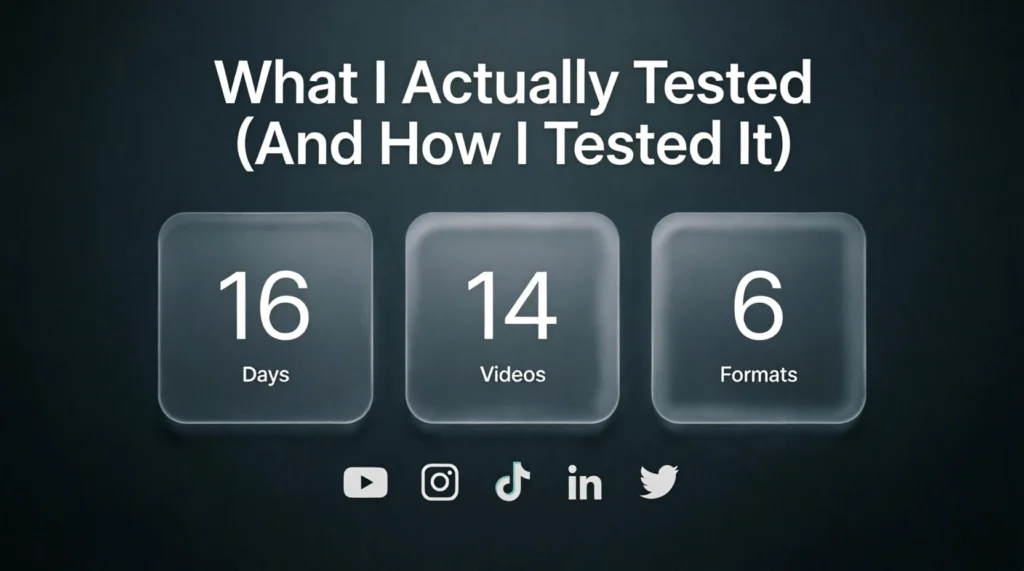
Real-world testing process for InVideo AI including AI video generation, editing workflow, export quality, and performance in this InVideo AI Review 2026
I didn’t just open the tool, generate one video, and call it a day. 

Over 16 days, I created 14 videos across 6 different formats and tracked everything. 

Here’s the full list:
  1. A YouTube Short (58 seconds) reviewing a productivity app
  2. An Instagram Reel (32 seconds) with motivational quotes
  3. A TikTok clip (45 seconds) for a fake fitness brand
  4. A product promo (90 seconds) for an e-commerce store
  5. A tutorial video (2 minutes 40 seconds) explaining how to set up a budget spreadsheet
  6. A faceless channel intro (48 seconds) for a personal finance niche
  7. A LinkedIn video (75 seconds) about remote work trends
  8. A Facebook ad (30 seconds) for a local bakery
  9. A news recap (2 minutes) about AI regulation
  10. A listicle video (90 seconds) — “5 morning habits of successful people”
  11. A testimonial-style video (60 seconds) using an AI avatar
  12. A holiday promo (45 seconds) for a clothing brand
  13. An educational explainer (2 minutes) about blockchain basics
  14. A podcast clip (55 seconds) with animated captions
For every single one of these, I recorded how many prompt attempts it took to get something usable, how many AI minutes/credits I burned through, how much manual cleanup was needed after generation, whether the stock footage actually matched the topic or felt like random filler, if the captions were accurate and whether I could edit them, and how long the entire process took from prompt to finished export.

I also tested all three quality tiers — Basic, Pro, and Ultra — to see if the credit cost was actually worth the quality difference. 

Spoiler: the math doesn’t work out the way you’d hope.

The Pricing Reality: What InVideo Actually Costs
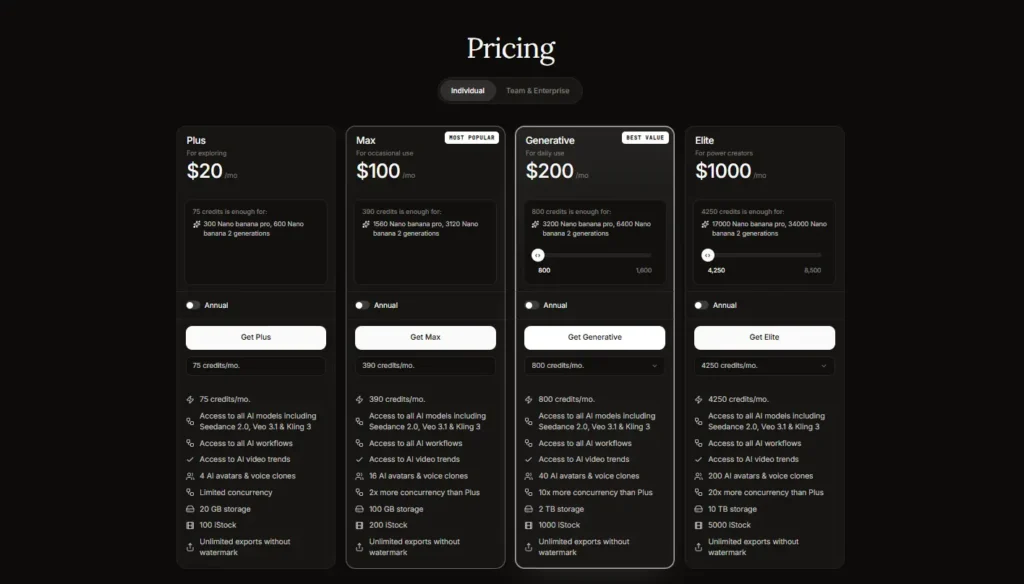
Let’s get the numbers straight because this is where most reviews get sloppy.
 
Here’s InVideo AI’s actual pricing as of July 2026, pulled directly from their official site:
 
invideo pricing plans
Now, here’s the thing most people don’t realize until they’ve already paid: those “AI minutes” aren’t what you think they are. 
 
They’re not the length of your final video. They’re the total generation time the AI spends building your content. And depending on which quality tier you choose, the burn rate is wildly different.
 
According to InVideo’s own help documentation, here’s how credits actually get consumed:
Quality Tier
Credits Per Minute of Video
Basic (stock assembly)
2 credits/min
Pro (enhanced generation)
80 credits/min
Ultra (highest quality)
160 credits/min
Oh, and if you add a human or pro AI actor from their library? That’s another 20 credits per minute on top of whatever tier you picked.
 
So let’s do some real math. Say you want to make a 2-minute product promo in Ultra quality with a professional AI avatar:
  • Ultra quality: 160 credits × 2 minutes = 320 credits
  • Pro actor: 20 credits × 2 minutes = 40 credits
  • Total: 360 credits for one 2-minute video
The Plus plan gives you 50 minutes (which translates to roughly 100 credits at Basic quality, but far fewer at higher tiers). 
 
At Ultra quality, you might get through one single video before you’re tapped out. On a $20 plan.
 
This is the credit trap that nobody warns you about. The marketing says “50 AI minutes per month” which sounds like plenty. 
 
But when you realize that “50 minutes” doesn’t mean “50 minutes of finished video,” the picture changes dramatically.

What InVideo AI Does Well (And I Mean Actually Well)
InVideo AI strengths including AI video generation, templates, voiceovers, editing tools, and automation in this InVideo AI Review 2026
I want to be fair here because InVideo AI isn’t a scam. There are legitimate things it does better than almost any competitor I’ve tested.

The First Draft Speed Is Genuinely Impressive

When I typed my first prompt — “Create a 60-second YouTube Short explaining the Pomodoro Technique, energetic tone, fast-paced editing, upbeat background music” — I had a complete video with script, voiceover, stock footage, transitions, and captions in about 90 seconds. 
 
Not 90 seconds of rendering time. 
 
I mean I hit enter, grabbed a coffee, and by the time I sat back down the video was ready.
 
That’s not hype. That’s real. 
 
For someone who needs a rough social clip by tomorrow morning, this speed is legitimately valuable. 
 
I’ve tested Runway, Pictory, Synthesia, and a dozen others. 
 
None of them get you from zero to “watchable first draft” faster than InVideo AI.

The Prompt Understanding Is Better Than Most

I’ve used AI video tools that completely miss the point. 
 
Ask for “a video about cryptocurrency mining” and get footage of actual pickaxes and dirt. 
 
InVideo AI generally understands context. 
 
When I asked for a personal finance tip about emergency funds, it pulled finance-related stock footage — charts, calculators, people reviewing documents. 
 
When I asked for a fitness video, it showed gyms, workouts, healthy food. 
 
It’s not perfect (we’ll get to that), but it’s significantly better than the random clip generators I’ve seen elsewhere.

Access to Sora 2 and VEO 3.1 Is a Big Deal

Here’s something that genuinely impressed me. 
 
InVideo has partnerships with both OpenAI and Google, meaning you get access to Sora 2 and Google VEO 3.1 directly inside the platform. 
 
Getting Sora 2 access on its own through ChatGPT Pro costs $200/month. 
 
VEO 3.1 Ultra runs close to $250/month standalone. 
 
InVideo bundles both starting at $20/month.
 
Now, you don’t get unlimited access — you’re still burning credits every time you use them. 
 
But the fact that you can generate clips with these flagship models without paying $200+ elsewhere is a genuine value proposition. 
 
I generated a few clips with Sora 2 through InVideo, and the quality was noticeably better than their stock footage assembly.

The AI Voiceovers Are Actually Good

I tested the “Conversational,” “Professional,” and “Enthusiastic” voice options across multiple videos. 
 
The Conversational voice in particular is shockingly natural. I’ve heard AI voiceovers that sound like 2010s GPS navigation. 
 
These don’t. 
 
You could absolutely publish a video with InVideo’s default voiceover and most viewers wouldn’t clock it as AI-generated.
 
I also tested the voice cloning feature (available on Plus and above). 
 
I recorded about 30 seconds of my own voice, and the clone was… not perfect, but usable. 
 
It captured my cadence and tone well enough that my colleague said “sounds like you on a bad phone connection.” 
 
For quick content where you don’t want to record narration, it’s a solid feature.

Customer Support Is Actually Responsive

I had a billing question about credit consumption — specifically why one of my generations burned 45 credits for a 30-second clip. 
 
I hopped on live chat and had a human agent responding within 2 minutes. 
 
Not a bot. 
 
An actual person who understood the product and explained that I’d accidentally left the quality setting on Ultra from a previous project. 
 
They were polite, knowledgeable, and solved my issue.
 
In an era where most SaaS companies hide behind Zendesk tickets and 48-hour response times, this was refreshing. 
 
Based on Trustpilot and G2 reviews, this seems to be consistent — their support team gets genuine praise.

The Bad: Where InVideo AI Falls Apart Under Real Use

Now we get to the part that made me pause my subscription. 
 
These aren’t minor quibbles. 
 
These are fundamental problems that affect whether the tool is actually usable for serious content creation.

The Credit Burn Is Real, And It's Painful
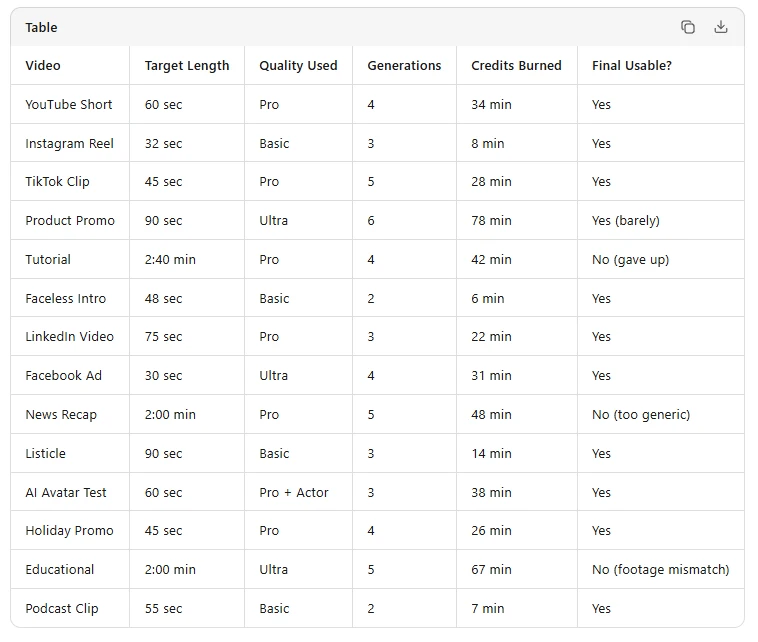
Remember that pricing table from earlier? Here’s how it actually played out in my testing.
 
I started on the Plus plan ($20/month, 50 AI minutes). 
 
My first video was a simple 60-second YouTube Short about productivity tips. 
 
I used Basic quality because I wanted to conserve credits. 
 
The first generation was… fine. The script was generic, the stock footage was relevant but uninspired, and the transitions were basic. 
 
I wanted something better.
 
So I regenerated it in Pro quality. 
 
Then I realized the voiceover was too slow. So I regenerated again with a faster pace. 
 
Then I noticed the captions had a typo in my brand name. Another regeneration. 
 
By the time I had something I was willing to publish, I’d burned through 34 minutes of AI generation for one 60-second video.
 
That’s more than half my monthly allowance on a single video. And I was being careful.
 
Here’s my full credit burn log from the two-week test:
Total credits burned: 449 minutes.
Total usable videos: 10 out of 14.
Total unusable videos: 4 (either too generic, footage didn’t match, or I gave up after burning too many credits).

To put this in perspective: I burned through the entire Plus plan (50 min) in my first two days. I had to upgrade to Max ($48/month) just to finish the test. 

And even on Max, I was constantly watching my credit balance like a gas tank on empty.

The worst part? There’s no refund for failed generations. If the AI spits out something unusable — wrong footage, awkward pacing, misspelled captions — those credits are gone. 

You paid for garbage, and you don’t get that money back. 

InVideo’s official policy is clear: credits are consumed on generation, regardless of output quality.

Credits Expire Even Though You Paid For Them

This is the policy that genuinely angered me, and it’s buried deep in their FAQ where most people won’t see it until it’s too late.

Unused credits do not roll over month to month. Period.

I paid $48 for the Max plan in mid-July. I used about 180 of my 200 minutes during my testing period. Then I got busy with other work and didn’t touch InVideo for the last week of the month. 

On August 1st, my remaining 20+ minutes vanished. Poof. Gone. I paid for them. I didn’t use them. InVideo kept the money anyway.


I asked support about this, and they pointed me to the FAQ: “Your plan credits reset monthly on your renewal date and do not carry forward.” 

They also noted that extra credits bought separately last 12 months, but plan credits? Nope. Monthly reset. Use it or lose it.


Compare this to Pictory, which offers rollover credits. Or Synthesia, which has a generous fair-use policy. 

InVideo’s approach feels deliberately designed to extract maximum revenue from users who don’t produce content on a perfectly consistent schedule.

If you’re a creator with variable output — busy one month, quiet the next — this policy will cost you significantly more than the sticker price suggests.

Stock Footage Repetition Makes Videos Look Cheap

Around my 6th video, I started noticing something annoying. 
 
InVideo AI was reusing the same stock clips within a single video.
 
In my 2-minute tutorial about budget spreadsheets, the same “person typing on laptop” clip appeared three times at different timestamps. 
 
The same “coffee cup on desk” shot appeared twice. For a 2-minute video, that’s jarring. It screams “AI-generated” to anyone watching — and not in a good way. 
 
It makes your content look like it was slapped together by an algorithm that ran out of ideas.
When I tried to manually replace the repeated clips, I discovered another problem…

Manual Editing Is Frustratingly Slow

InVideo AI markets itself as “edit with prompts” — and when it works, it feels like magic. 
 
Type “make the music more upbeat” and it does. Type “change the footage in scene 3 to something more professional” and sometimes it nails it.
 
But sometimes — and this happened to me roughly 30% of the time — the AI misunderstands your instruction entirely. 
 
I asked it to “slow down the pacing in the second half” and it removed two entire scenes instead. I asked it to “swap the background music to something calmer” and it changed the voiceover accent from American to British. These aren’t edge cases. 
 
These are regular occurrences when you’re doing anything beyond the most basic edits.
 
And here’s the kicker: every regeneration costs credits. There is no “oops, the AI made a mistake, let me fix that for free.” 
 
If your edit fails and you try again, you pay again. One user on the App Store reported giving the same command five times with no effect, burning credits each time. 
 
I didn’t hit five, but I definitely hit three on more than one occasion.
 
When you give up on the AI editor and try to manually fix things in the timeline, the workflow is clunky. 
 
Want to replace one clip at a specific timestamp? Click the scene, wait for the media panel to load (3–5 seconds on a fast connection), search for a replacement, preview it, drag it in, adjust the timing manually, re-render. 
 
That’s 7 steps for a 2-second clip swap. In CapCut or DaVinci Resolve, it’s drag-and-drop.
 
One Trustpilot reviewer summed it up perfectly: “You need to wait until next Christmas to make simple edits.” I laughed when I read it. Then I spent 20 minutes trying to fix a 5-second clip and realized they weren’t exaggerating.

Dynamic Captions Are Advertised But Barely Editable

InVideo AI heavily promotes its “dynamic captions” — those trendy, animated subtitles that bounce and highlight word-by-word, the kind you see all over TikTok and YouTube Shorts.
 
Here’s what they don’t tell you: you cannot edit the captions after generation.
If the AI mishears your brand name, misspells a technical term, or gets the punctuation wrong, you’re stuck. 
 
You can’t click into the caption text and fix a typo. You can’t change the font size for emphasis on a key phrase. You can’t even adjust the timing if a caption appears half a second too early.
 
In my product promo, the AI captioned my test brand name “NexaTech” as “Next Tech.” I had two options: publish with the wrong name, or regenerate the entire video — burning another 6 minutes of credits — instead of fixing two letters. 
 
For a tool that charges up to $96/month, this is genuinely unacceptable. 
 
CapCut offers fully editable dynamic captions for free. Free. As in zero dollars.

Niche Topics Get Generic, Mismatched Footage

InVideo AI’s stock library is large — they partner with iStock and Storyblocks — but it struggles hard with anything outside mainstream topics.

When I asked for a video about “blockchain node validation,” I got generic “person looking at code on screen” clips that could have been about anything.

When I asked for “sourdough bread fermentation process,” I got… a person holding a grocery bag in a supermarket. Not a single shot of bread, dough, or a kitchen.

For broad, popular topics — fitness, business, travel, motivation — the footage matching is decent. 

But if your content lives in a niche, you’ll spend more time searching for replacement clips than you would filming B-roll on your phone. 

And remember, every clip swap in the editor costs you time and patience.

The Real Cost Breakdown: What You'll Actually Spend
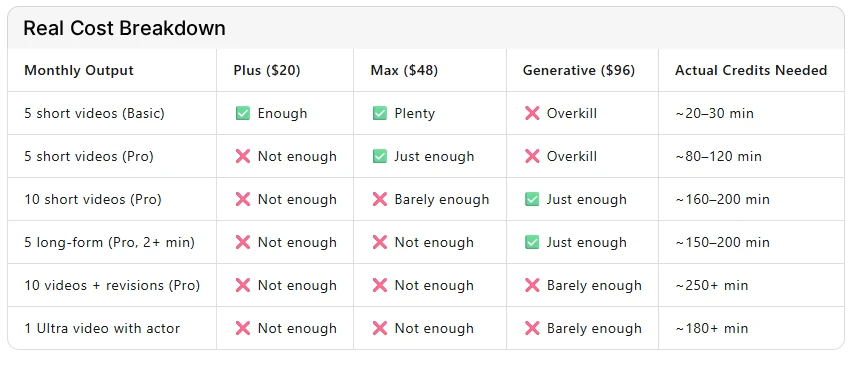
Let’s stop pretending the $20 Plus plan is usable for anyone creating content regularly. Here’s what real creators actually spend:
Invideo AI Cost Breakdown
The reality: If you’re producing content consistently at Pro quality (which is the minimum I’d recommend for anything you plan to publish), you’ll need the Max plan at minimum
 
And if you create long-form content, use Ultra quality, or need multiple iterations, you’ll burn through Max’s 200 minutes and need the Generative plan at $96/month.

Annual cost for a serious creator: $576–$1,152+/year.

For context, that’s enough to hire a decent freelance video editor on Fiverr for 2–3 videos per month. 
 
Or buy lifetime access to several competing tools on AppSumo. 
 
The credit system doesn’t just make budgeting unpredictable — it actively punishes creators who care about quality.

Who Should Actually Use InVideo AI

After two weeks of hands-on testing, here’s my honest assessment of who this tool is actually for:

Use It If:

  • You need quick social media drafts and genuinely don’t care about perfection. If your standard is “good enough for a TikTok that disappears in 24 hours,” InVideo AI delivers.
  • You’re an absolute beginner who’s never opened a video editor in your life and needs something publishable by tomorrow. The learning curve is nearly zero.
  • You create broad-topic content where stock footage is plentiful and generic is fine. Fitness motivation, business tips, travel inspiration — these work reasonably well.
  • You have a generous budget and treat the tool as a first-draft generator, not a final output solution. You plan to export and finish in another editor.
  • You need a video today and quality is genuinely secondary to speed. Sometimes deadlines matter more than polish.

Skip It If:

  • You create niche or technical content where footage accuracy matters. The stock library simply doesn’t have enough specific content.
  • You need precise brand control over colors, fonts, exact clip placement, or timing. The AI editor is too imprecise for brand work.
  • You’re on a tight budget or have variable output month-to-month. The credit system and non-rollover policy will cost you more than you expect.
  • You create long-form content regularly. Credits vanish fast on 3+ minute videos, especially at Pro or Ultra quality.
  • You need editable captions for professional output. CapCut does this better for free.
  • You want rollover credits or predictable pricing. InVideo’s model is deliberately designed to maximize revenue from inconsistent usage.
  • You’re doing client work where revisions are expected. Every client revision costs credits, and clients always want revisions.

Better Alternatives for Specific Needs

I’m not going to leave you hanging. 
 
If InVideo AI isn’t the right fit for your workflow, here are the tools I’d actually recommend based on my testing:
Your Need
Better Tool
Why It's Better
Free AI video editing
CapCut
Completely free, fast, editable dynamic captions, no credit anxiety, professional-grade features
Cinematic AI generation
Runway Gen-4
Best-in-class motion, realistic physics, no stock footage repetition, genuinely creative outputs
AI avatars / talking heads
HeyGen
More realistic avatars, better lip-sync, specifically designed for presenter-style content
Blog-to-video repurposing
Pictory
Turns articles into videos automatically, fair flat-rate pricing, no credit burn anxiety
Long-form YouTube content
Descript
Edit by transcript, full manual control, one flat fee, podcast/video hybrid workflow
Social media scheduling + video
Canva
Built-in editor + scheduler, flat pricing, no credits, massive template library
Voice cloning + script
ElevenLabs
Industry-leading voice synthesis, better than InVideo's built-in voices, reasonable pricing
My honest recommendation: If you’re creating 5+ videos per month and care about quality, Pictory or Descript will cost you less and give you more control. If you just need quick TikToks or Reels, CapCut is free and faster.
 
If you want cinematic AI footage, Runway is worth the premium. InVideo AI sits in an awkward middle ground — faster than manual editing, but more expensive and less controllable than its competitors.

The Score Nobody Else Will Give You

Here’s my honest scoring, based on two weeks of real use:
Criteria
Score
Why
Speed of First Draft
9/10
Fastest AI video generator I've tested. Period.
Output Quality
5/10
Repetitive footage, generic B-roll, inconsistent accuracy
Editing Control
3/10
Chat-based editing is hit-or-miss; manual editing is clunky
Value for Money
4/10
Credit system is unpredictable and punishes quality-focused creators
AI Voice Quality
8/10
Surprisingly natural, especially the Conversational voice
Caption Quality
4/10
Uneditable mistakes are unacceptable at this price point
Customer Support
8/10
Fast, human, actually helpful
Overall
5.5/10
Brilliant concept, impressive speed, fundamentally flawed business model
InVideo AI is a first-draft machine that charges like a professional tool. The speed is real. 
 
The automation is genuinely impressive. But the moment you try to turn that first draft into something polished and professional, you enter a credit-burning loop that the marketing materials never warn you about.
 
If InVideo switched to flat-rate pricing, added editable captions, and allowed credit rollover, it would be an easy 8/10 recommendation. 
 
Until then, it’s a 5.5/10 — useful for specific use cases, but too expensive and too restrictive for most serious creators.

What I Recommend You Do Before Paying

If you’re still considering InVideo AI after reading this, here’s exactly what I’d do:
  1. Start with the free plan. You get 10 minutes of AI generation per week. Use all of it. Make 2–3 videos and see how the credit burn feels.
  2. Track your credit usage obsessively. Check your balance before and after every generation. Notice how fast it drops when you use Pro or Ultra quality.
  3. Try one video with 3–4 iterations. This is where the credit trap becomes obvious. See how much of your monthly allowance disappears fixing the AI’s mistakes.
  4. Test the caption editing. Try to fix a typo in the generated captions. Discover that you can’t. Decide if that matters to you.
  5. Compare your output to what CapCut (free) or Pictory ($25/month flat) can do. Ask yourself if the extra speed is worth the extra cost and restrictions.
  6. Read the billing FAQ carefully. Specifically the part about credits not rolling over. Make sure you’re okay with paying for capacity you might not use.
If, after all that, InVideo AI still feels like the right tool for your workflow, go for it. It’s not a bad product. 
 
It’s just a product with a pricing model that doesn’t align with how most creators actually work.

About AIVideo-Expert:

We test AI video tools the way real creators use them — not in demo mode, not from press releases, not with sponsored accounts. 
 
We pay with our own money, burn our own credits, and tell you what actually happens. 
 
No fluff. No affiliate-driven 8/10 scores. 
 
Just honest reviews from people who make videos for a living.